Ghost ROB RUN FULL with three aim modes

Working
Ghost Ghost
Last update 17.11.2026 This date shows when the software was last updated. An old date doesn't mean the software stopped working! Most likely the developer just had nothing new to add. If you have any doubts, you can always check the current status with our support team.
Add another cheat from this game too — to compare them.
Ghost ROB RUN FULL
Steam
Windows support: 10: 2004, 21h1, 21h2, 22h2; 11: 21h2, 22h2, 23h2, 24h2, 25h2, 26h1
Menu language: English
Spoofer:No
USB drive:No
BIOS:No

User information

Windows 10/11 (1903–26H1 per Ghost). Use the Steam version of ROB RUN, an Intel or AMD CPU and an NVIDIA or AMD GPU. Run the game in windowed or borderless mode. A USB drive is not required. There is no built-in spoofer.

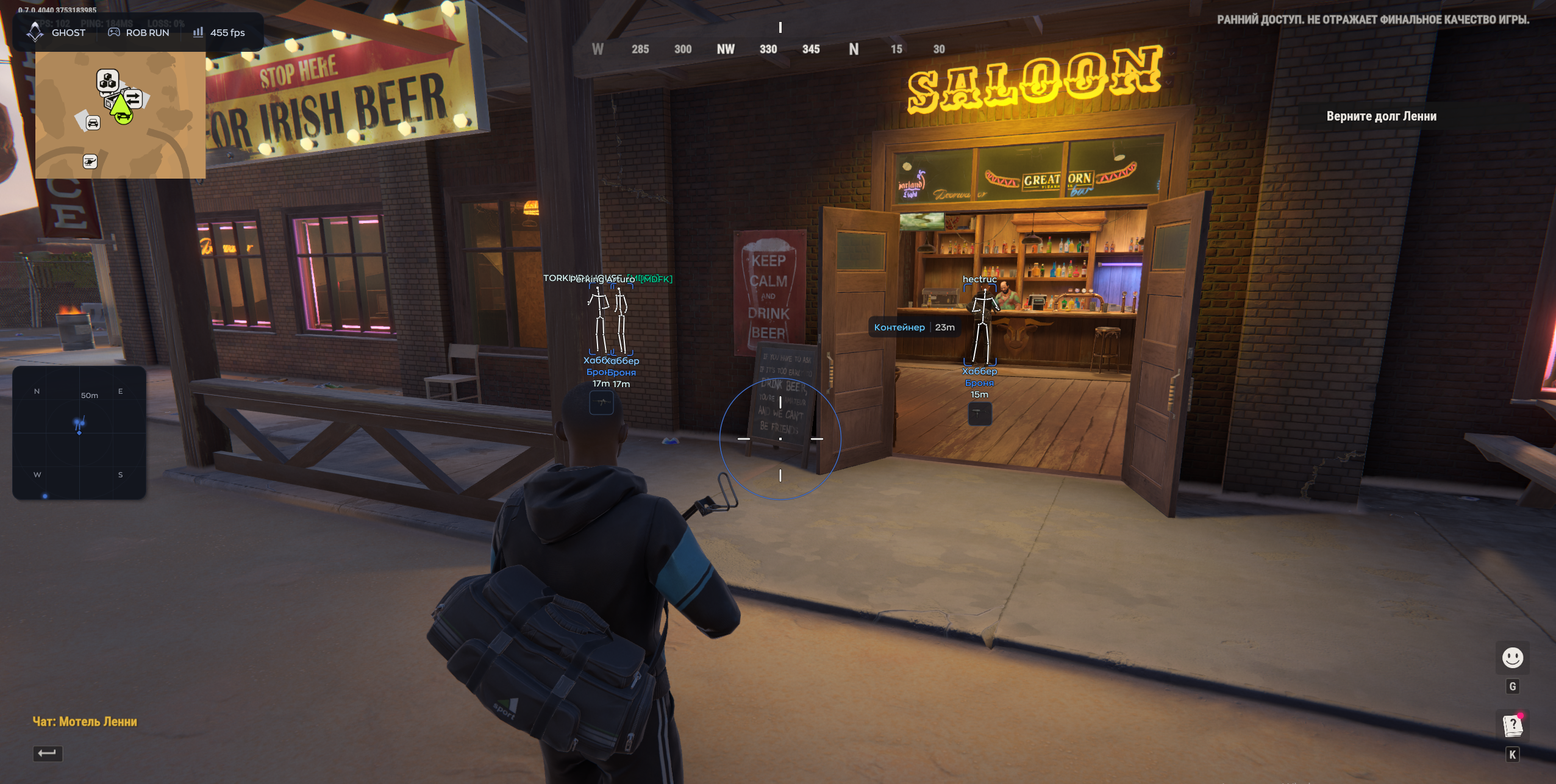
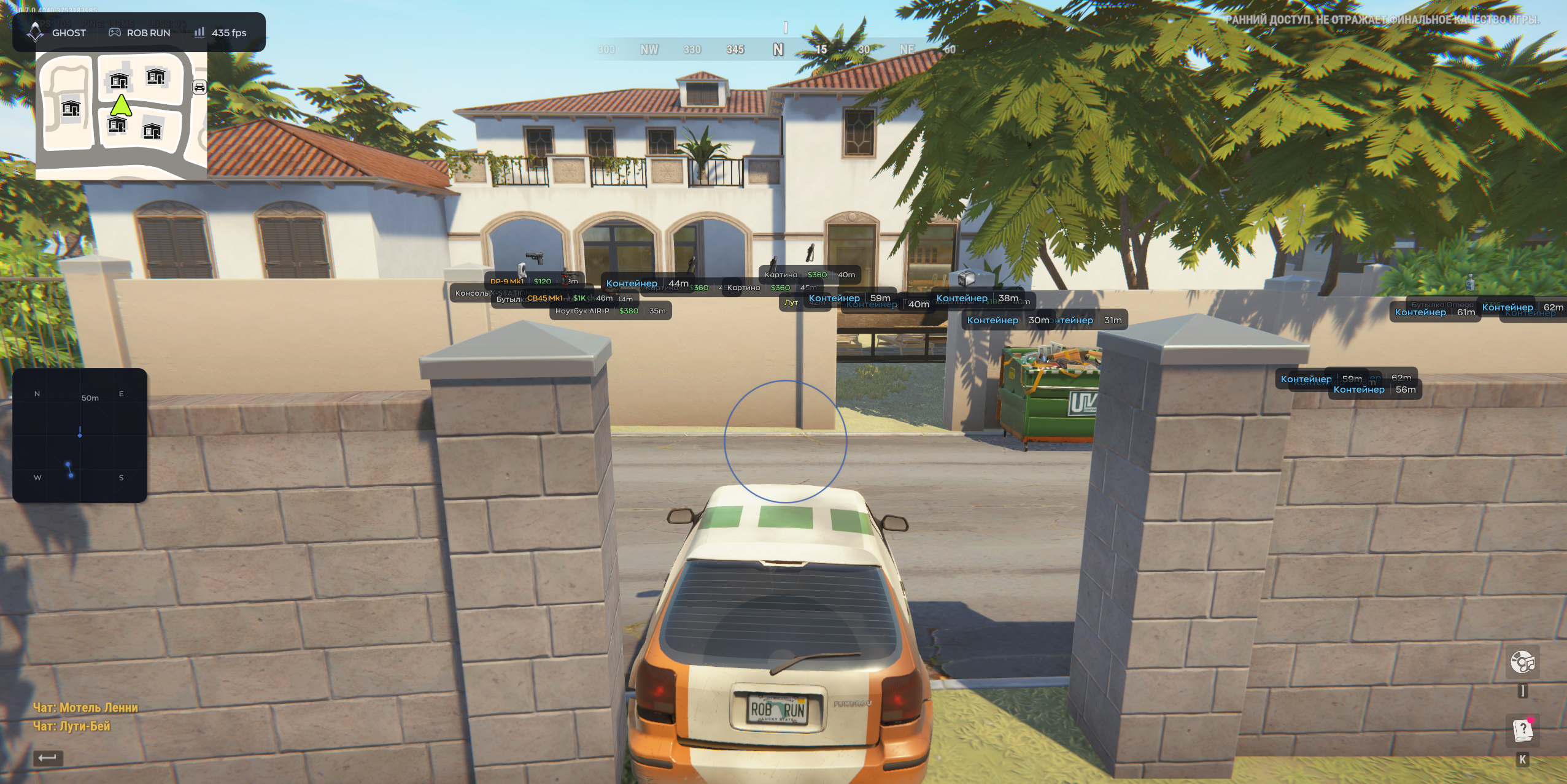
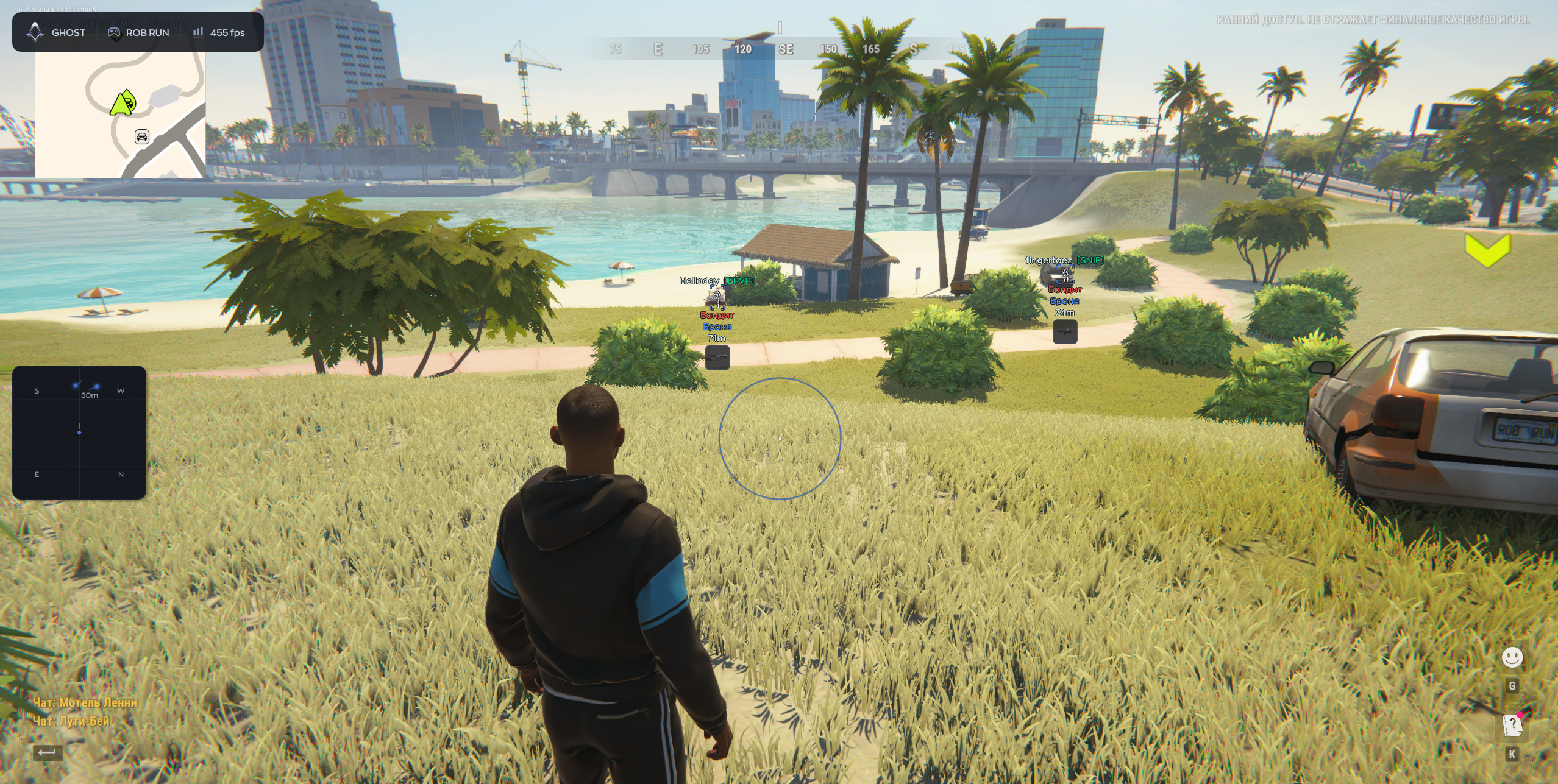
SCREENSHOTS
Description

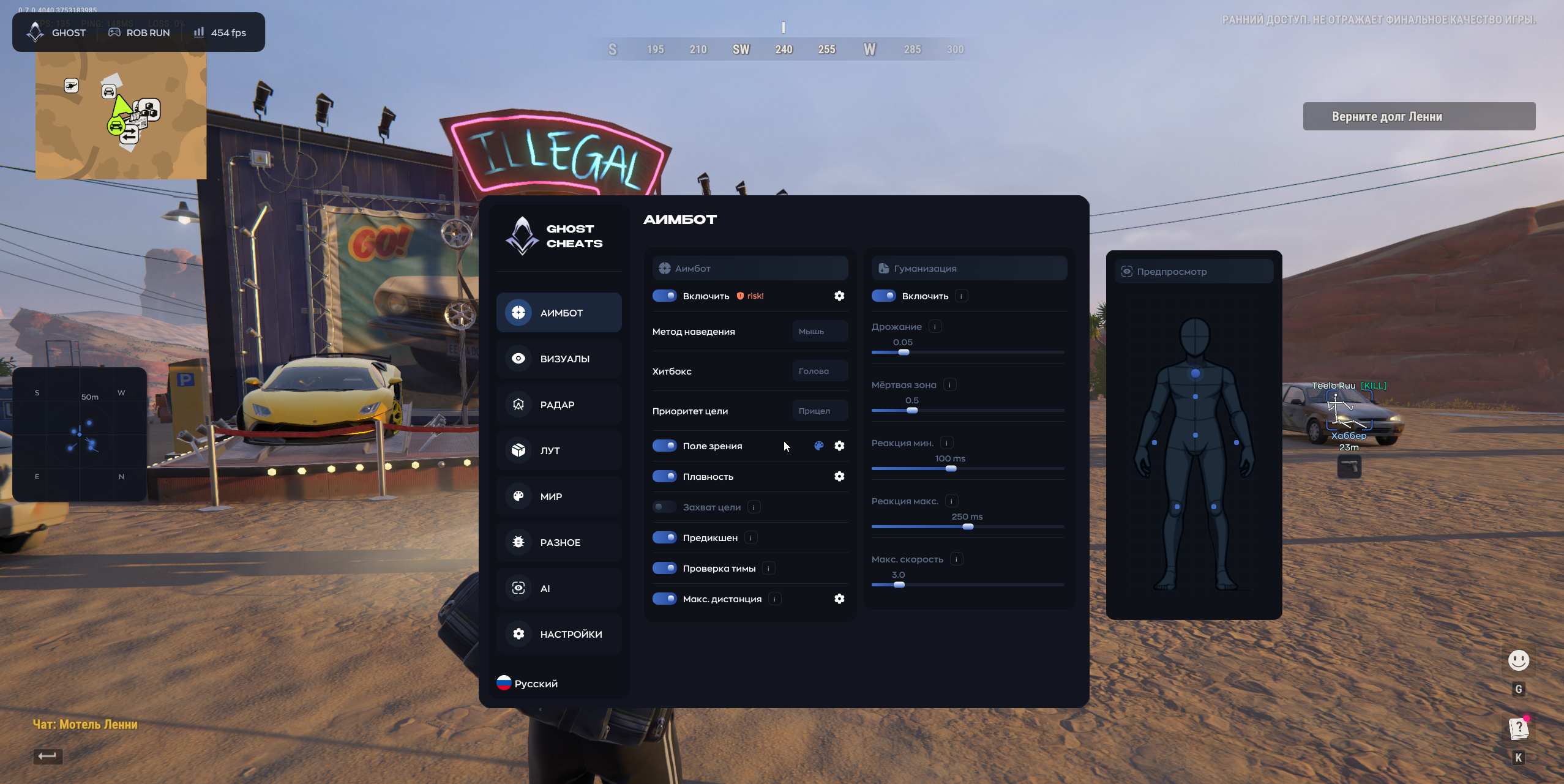
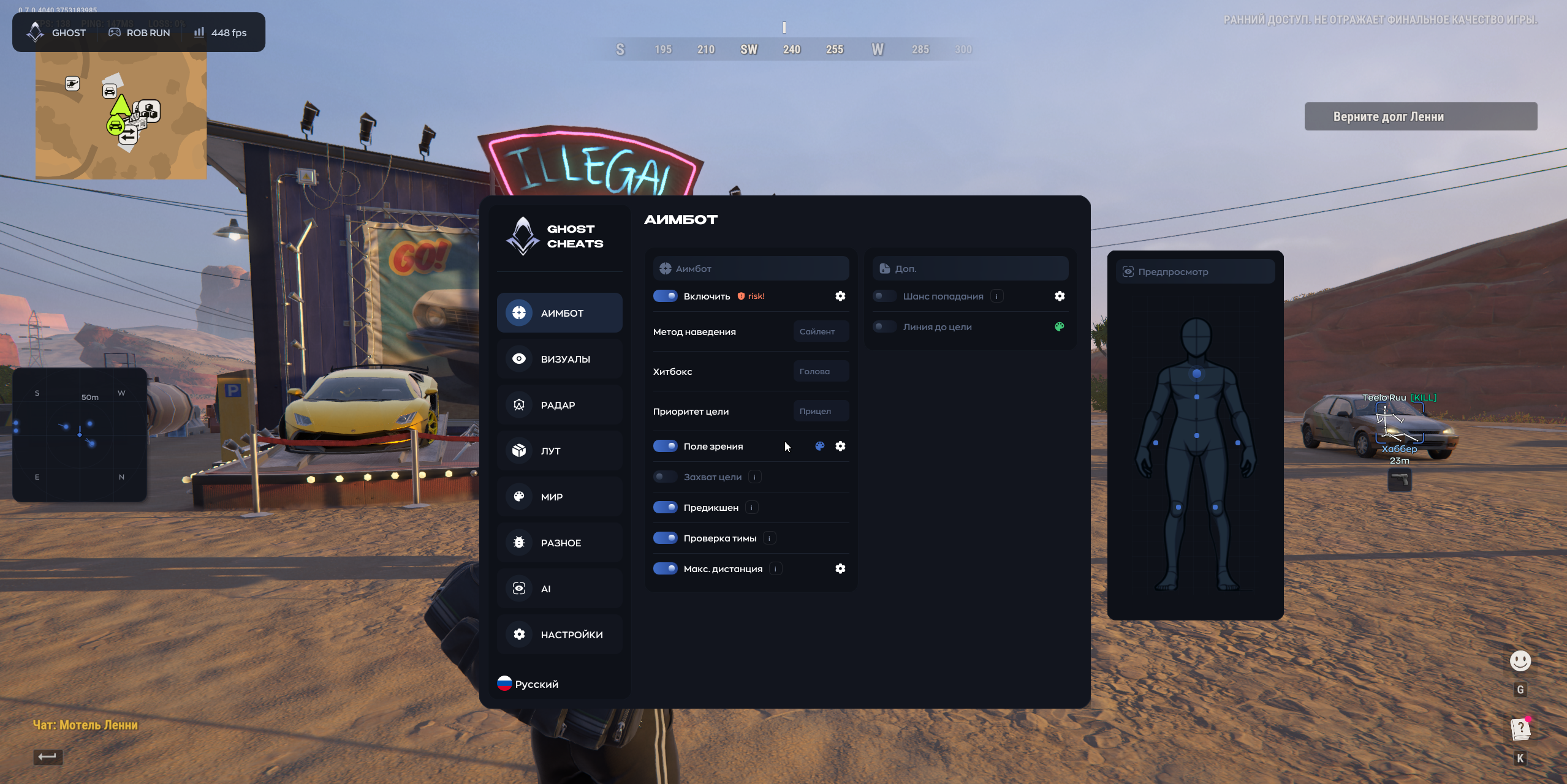
Ghost FULL lets you set up aiming and on-screen markers separately. Aim Method has three options: Mouse, Silent and Memory. Start with the hitbox, field of view and reaction delay. The radar and loot filters are available while aim is turned off.

Product features

Aim controls

Enable

Aim toggle.

Aim Method

Select Mouse, Silent or Memory.

Hitbox

Select where to aim on the model.

Target Priority

Set the order of target selection.

Field of View

Set the acquisition area around the crosshair.

Smoothness

Adjust motion smoothing.

Target Lock

Keep the selected player outside the acquisition area.

Prediction

Lead a moving target.

Team Check

Exclude teammates and friends.

Max Distance

Cap the aiming range.

Shake

Add small aim fluctuations.

Dead Zone

Set an area near the target where aim stays still.

Reaction Range

Set the minimum and maximum reaction delay.

Max Speed

Limit turning speed.

Hit Chance

Adjust the chance of an intentional miss.

Line to Target

Draw a line to the selected target.

Aim Preview

Preview the aim settings.

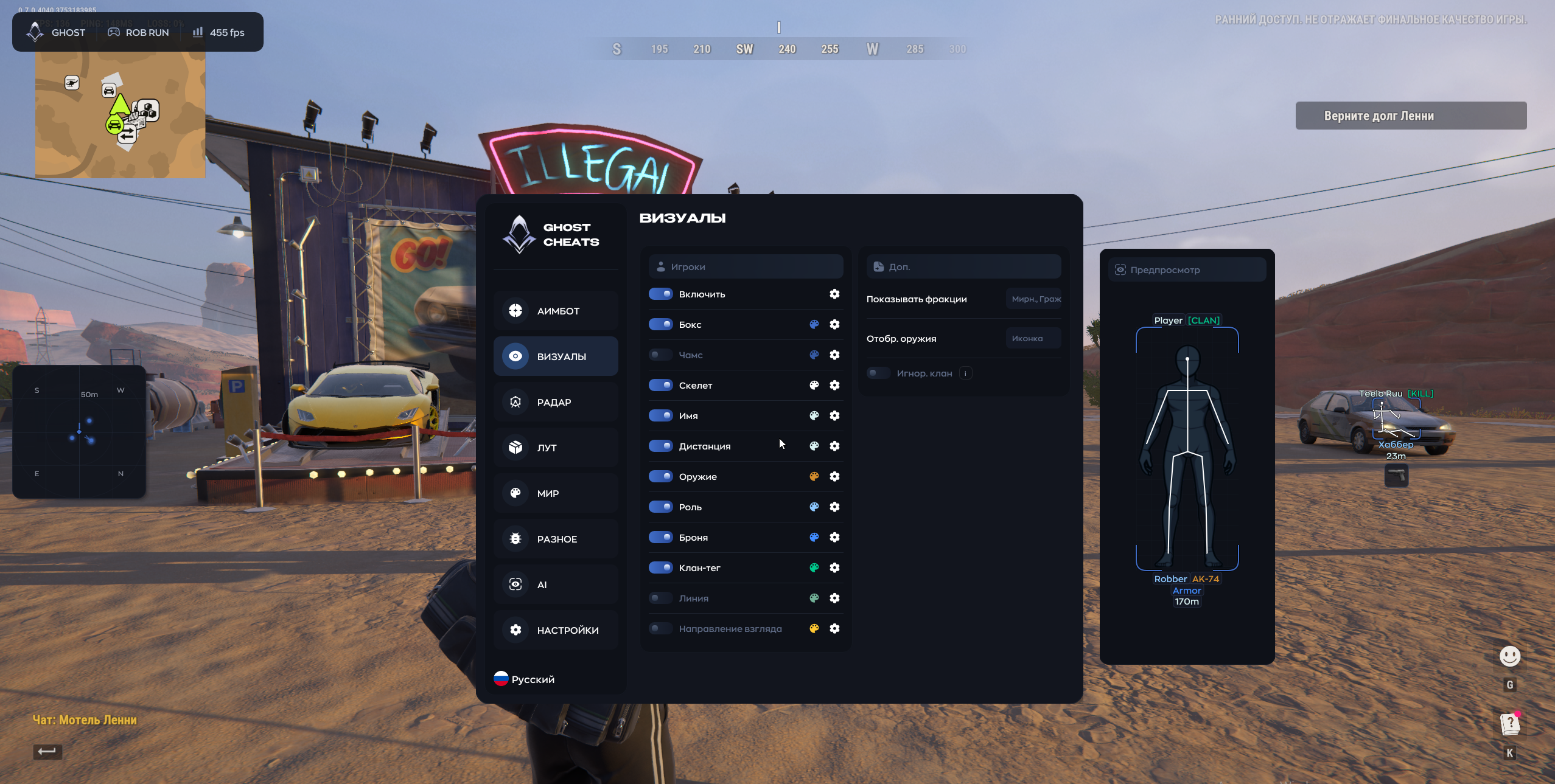
Player overlays

Box

Outline a player with a box.

Chams

Color the player model.

Skeleton

Draw the player's pose as a skeleton.

Name

Display the player name.

Distance

Show the distance to the player.

Weapon

Label the player's weapon.

Role

Display the player's role.

Armor

Show armor presence and level.

Clan Tag

Show the clan tag.

Line

Draw a line from the screen edge to the player.

View Direction

Indicate the player's facing direction.

Show Factions

Filter the factions shown.

Weapon Selection

Switch between a weapon icon and text.

Ignore Clan

Exclude selected clan tags from the overlay.

Preview

Preview the player labels.

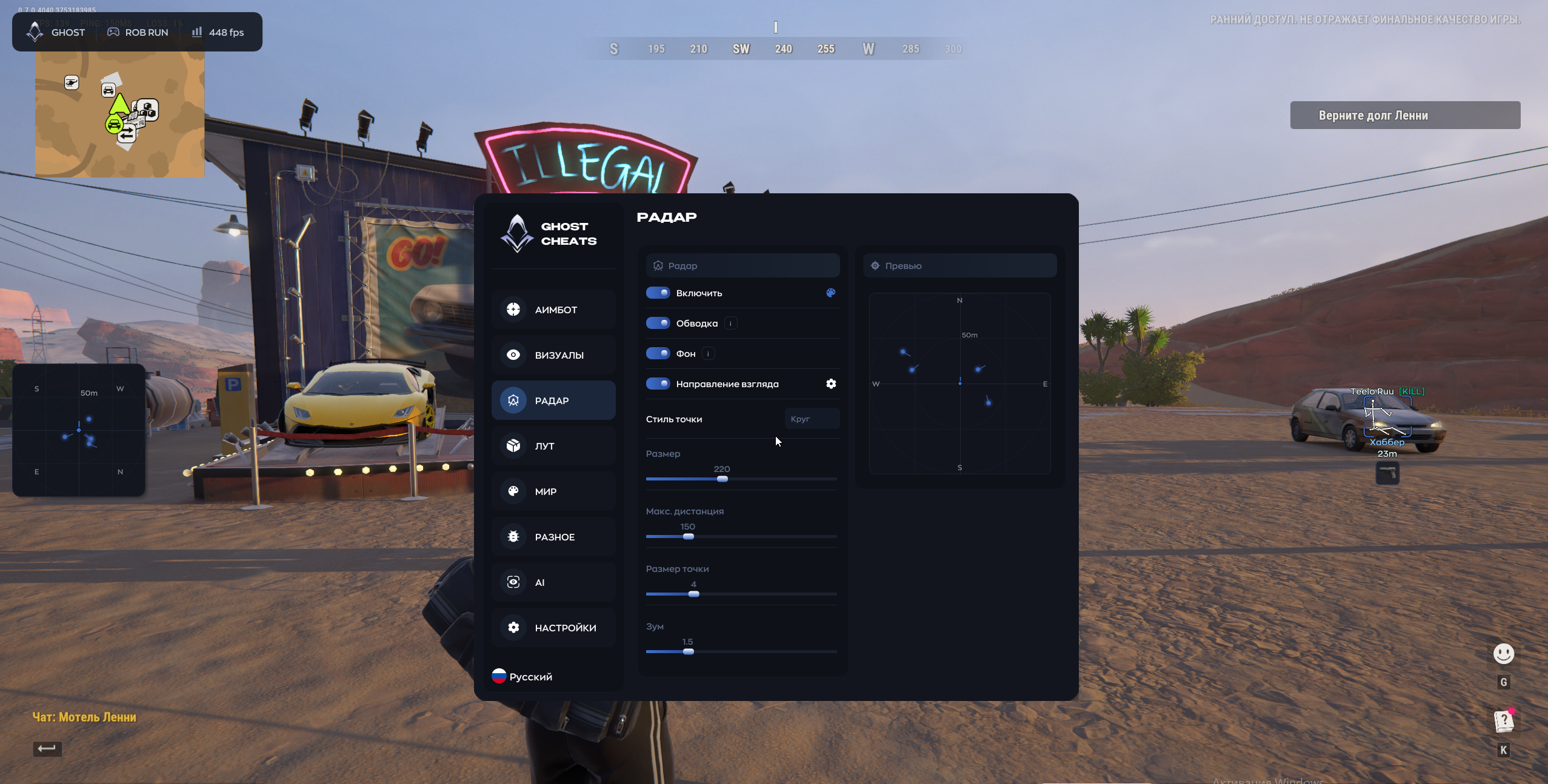
Radar

Outline

Draw a border around the widget.

Background

Toggle the radar background.

View Direction

Show facing direction on the radar.

Dot Style

Change the shape of the markers.

Size

Resize the radar widget.

Max Distance

Set the maximum display range.

Dot Size

Adjust marker size.

Zoom

Adjust the zoom inside the widget.

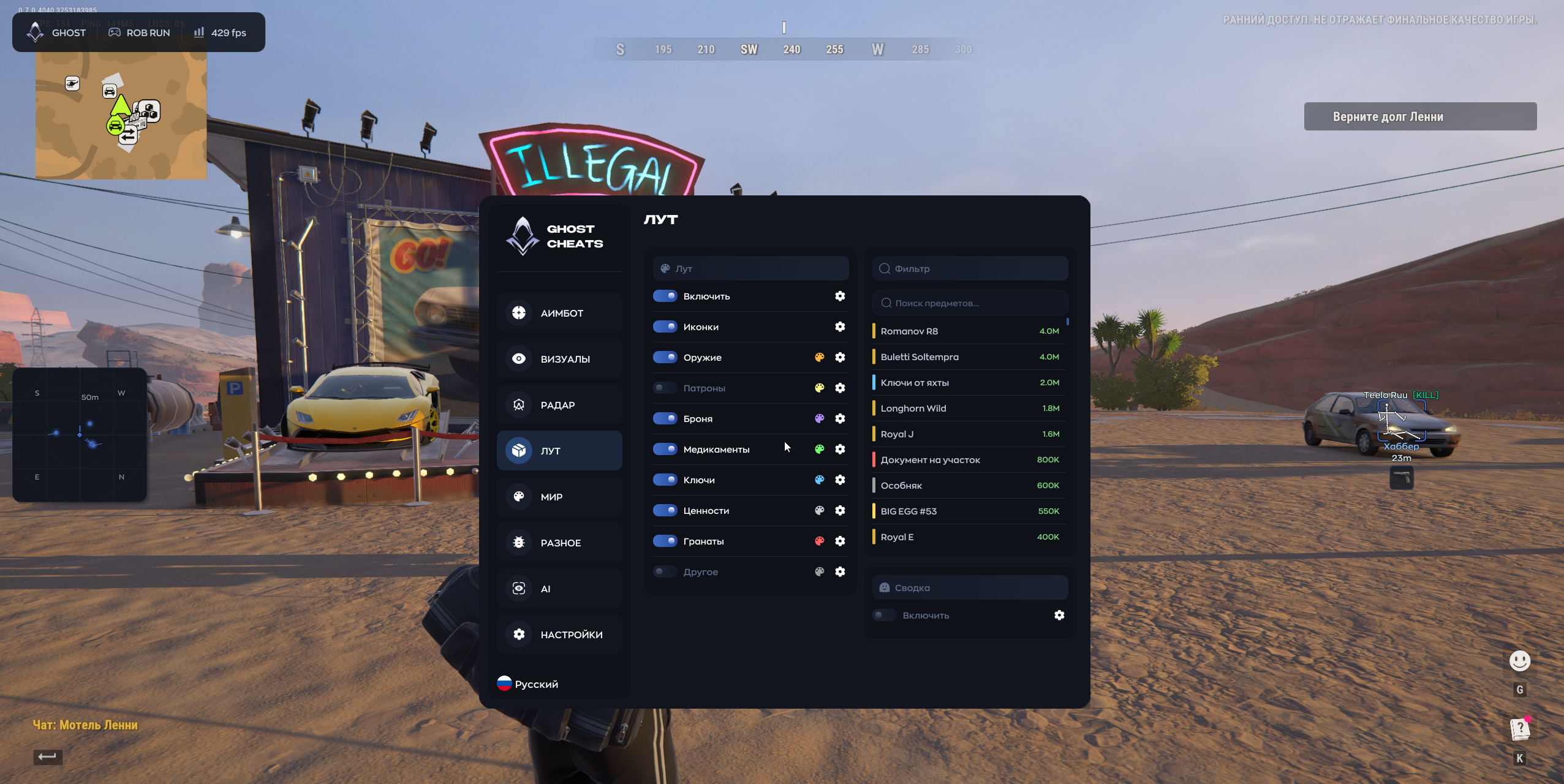
Loot

Icons

Use icons in place of item labels.

Weapon

Show weapons.

Ammo

Show ammunition.

Armor

Show armor items.

Medications

Show medicine.

Keys

Show keys.

Valuables

Show valuables.

Grenades

Show grenades.

Other

Show other loot.

Search Items

Filter items by name.

Loot Summary

Open a separate list of matching items.

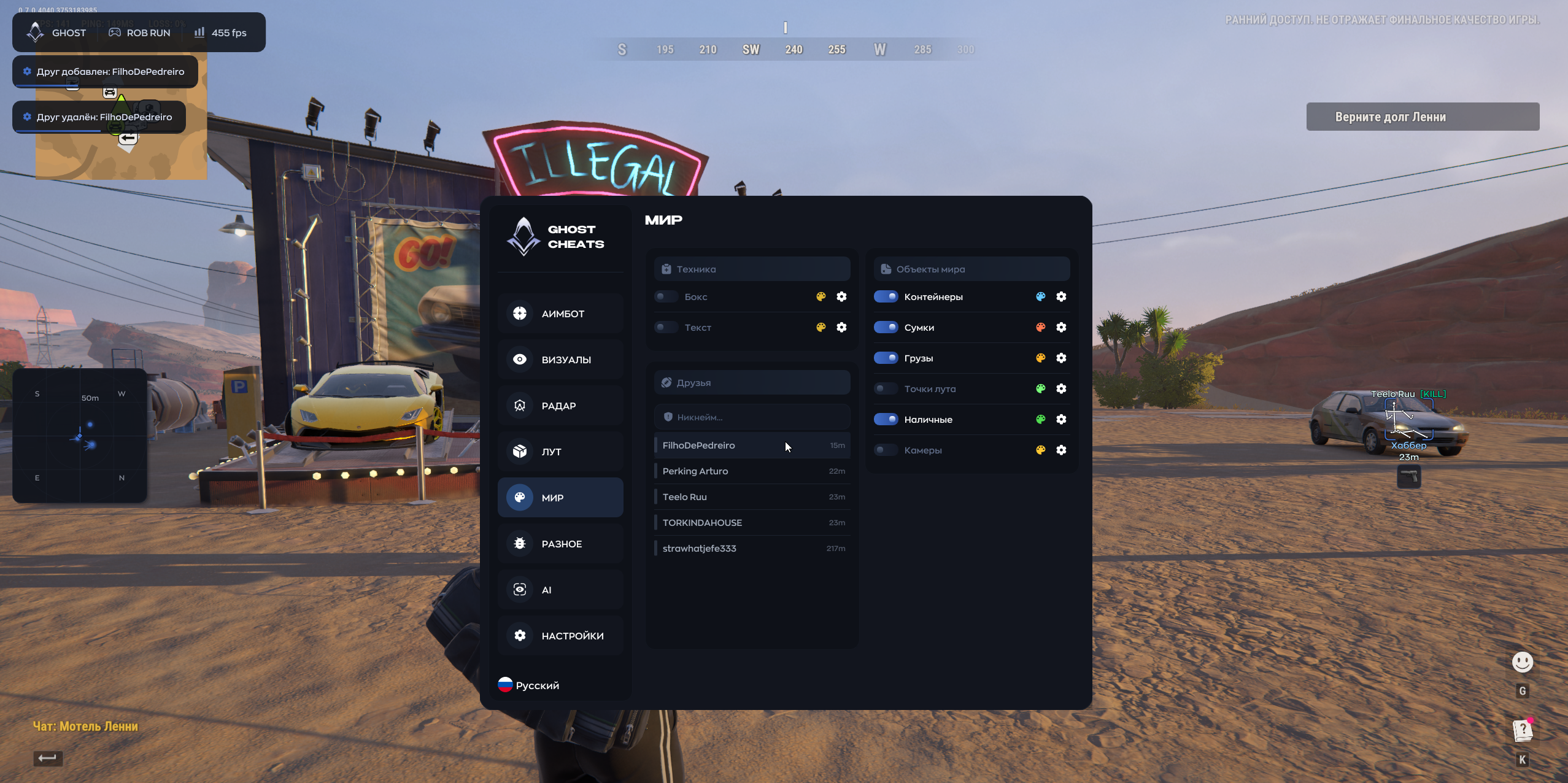
Vehicles and world

Vehicle Box

Draw boxes around vehicles.

Vehicle Text

Show vehicle names and distance.

Friends

Show distance to friends.

Containers

Mark containers.

Bags

Mark bags.

Cargo

Mark cargo.

Loot Spots

Mark loot spawn points.

Cash

Highlight cash.

Cameras

Mark surveillance cameras.

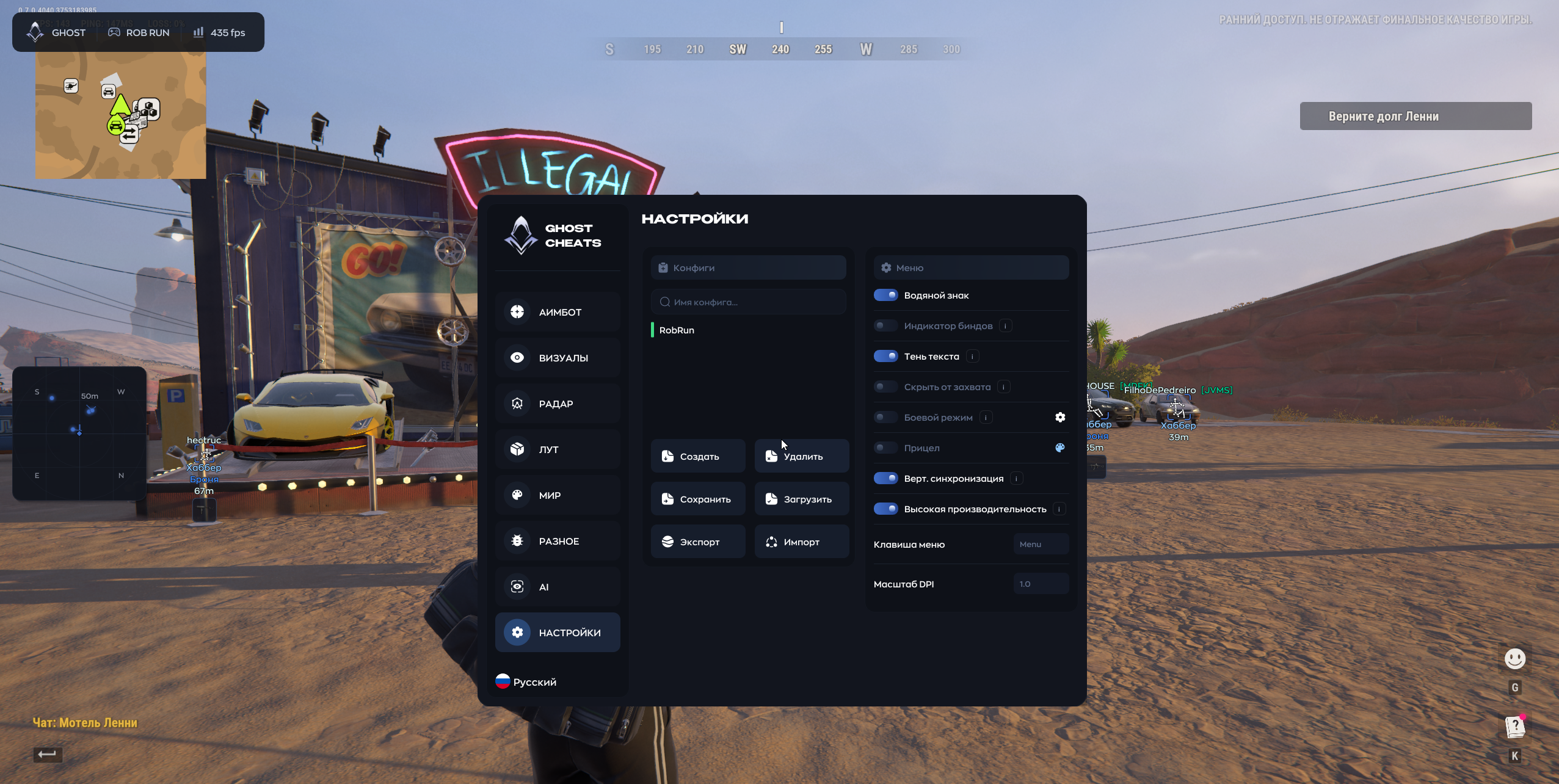
Profiles and interface

Create / Delete

Create or remove a profile.

Save / Load

Save or load a profile.

Export / Import

Export or import settings as a file.

Watermark

Display the Ghost watermark.

Binds Indicator

Display pressed binds.

Text Shadow

Add shadows to interface text.

Hide from Capture

Set whether the menu is hidden from capture.

Combat Mode

Hide the menu on the assigned key.

Crosshair

Show a custom crosshair.

V-Sync

Toggle vertical sync.

High Performance

Switch the menu to performance mode.

Menu Key

Bind the menu key.

DPI Scale

Adjust interface scale.

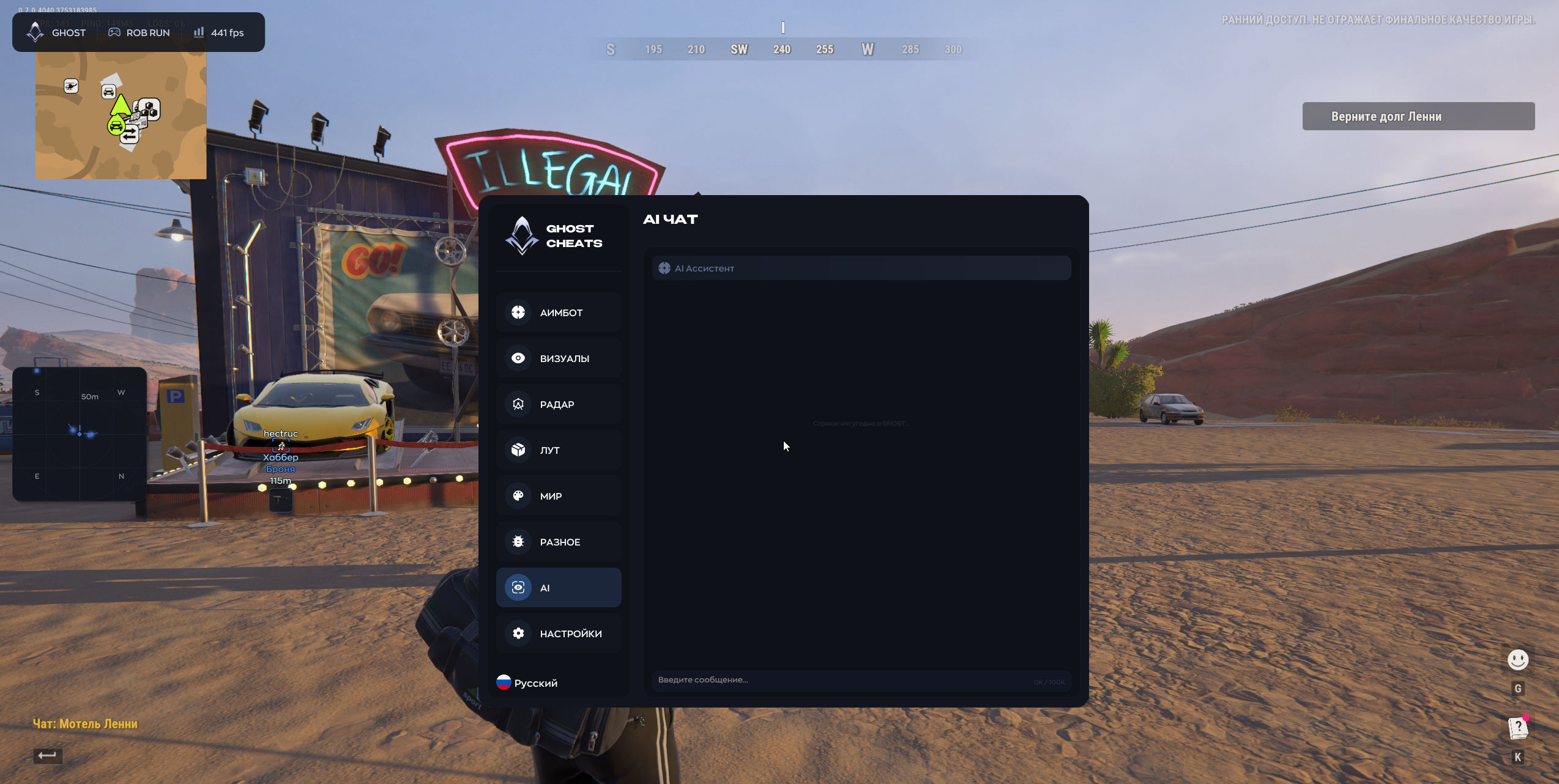
AI Assistant

Open the assistant for menu questions.
TARIFFS
300₽
BUY What happens after payment?
Got a question? Ask before you pay

We'll help you choose and sort out any launch issue. Ask us anything before buying, we're always on your side.

Support 10:00–22:00, sometimes we reply at night too
Ask a question
Update history
  • 17.11.2026 Working

Available tariffs

1 day
300 ₽
300 ₽ / day
START PURCHASE
7 days
1500 ₽
214 ₽ / day
START PURCHASE
lowest per day
30 days
2500 ₽
83 ₽ / day
START PURCHASE
Reviews about Ghost ROB RUN FULL

No reviews yet. Be the first to leave one.

Your review

Reviews are published after moderation.

Join our gaming community chat

Discuss current cheats from developers and how to use them effectively in popular online games. Share tactics, exchange useful info and find like-minded players in our community.

1 900+Members
24/7Online
Join our gaming community chat

Technical support

Run into a technical issue? Our team of experts will help. We handle all requests in a live queue, so please be understanding if it sometimes takes a little wait. We guarantee that no request goes unanswered.

Availabilityfrom 10:00 to 23:00
Fast responseIn queue order
Get help
Technical support
PROCHEAT

PROCHEAT news channel

Follow product status changes, update history and important announcements.

Subscribe

Ghost ROB RUN FULL access plans

Pick a subscription length for FULL. Every plan includes Mouse, Silent and Memory aim.

DurationPrice
1 day300 RUB
7 days1500 RUB
30 days2500 RUB

Three aim modes and target selection

Start with Hitbox and Target Priority. Hitbox sets the point on the model. Target Priority decides which player to pick when several are eligible. If aim picks someone too far away, check Max Distance. If it picks someone too far to the side, check the Field of View around the crosshair.

Target Lock can hold a player who briefly moves outside the Field of View. Test it separately from priority so you can see why aim stays on the same player.

Aim response and prediction

Smoothness adjusts how the aim moves. Max Speed sets a turn-speed cap, and the reaction settings provide a delay range before movement. Dead Zone defines an area in which automatic adjustment stays idle. Shake adds small fluctuations. Prediction accounts for movement ahead of a shot. Use the preview to check changes, and enable the target line when you want to see the current selection. Team Check can exclude teammates and friends.

If the right player is selected but movement starts late, look at Min Reaction and Max Reaction before adjusting smoothing. They set the wait before movement starts. If the timing feels right and the turn is too fast, try Max Speed on its own.

Player markers and role information

Overlay settings work independently of aim. A skeleton and a box make the model easier to read, while weapon, armor and distance labels give more information about gear. Switch the weapon label between an icon and text. Roles and clan tags provide context when several players are nearby. Selected clans can be excluded from the overlay. Use the preview to see how the labels fit together.

Radar and vehicles

The radar complements the in-world labels. It can show facing direction and lets you adjust the markers or turn off the background. Range governs how far the radar displays contacts; zoom changes their presentation inside the widget. Vehicles have their own boxes and text with the name and range. The friends list provides a separate distance readout for your group.

Loot search and world objects

Loot categories toggle independently, including ammunition, medicine, armor and keys. Use the name filter to focus on a specific item, or open the summary to see matching items together. Cameras, bags, containers, cargo, cash and loot spawn points have separate world-object controls. You can keep a narrow item filter while leaving the world labels you still need visible.

Profiles, menu and launch checks

Save a profile once you have settled on the aim and overlay controls. Create another to try changes without losing the baseline. Profiles can be loaded, exported and imported. Interface settings include scaling, text shadows and a bind indicator. Combat Mode hides the menu on an assigned key, and Menu Key controls opening it. Check your Windows build and follow the instructions provided with the key. If launch fails, record the exact error and your Windows build before contacting support.

Before comparing two profiles, check the Menu Key and Combat Mode binds. If the window disappears during a test, check Combat Mode first. You can leave the aim settings alone while you check the menu.

Common questions

Which aim modes are included?

Choose Mouse, Silent or Memory. All licence durations include the same three modes.

Can I limit acquisition?

Yes. Field of View sets the area around the crosshair; Max Distance sets the range cap.

Can teammates be excluded from aim?

Use Team Check. Faction filters and clan exclusions are part of the player overlay.

Can I see where players are facing?

Yes. View Direction is available in the player overlay and radar, with separate controls.

What does the vehicle overlay show?

It can display a box, the vehicle name and distance. Containers and bags have their own world-object settings.

How do I search for a specific item?

Enter the item name in the loot filter. Open Summary to review the matching items together.

Can a profile be moved to another PC?

Settings can be exported and imported. Check the order instructions for licence transfer terms.

What key opens the menu?

Menu Key controls opening the interface. Check your key instructions for the initial bind.

Which licence durations are available?

Plans are available for one day, seven days and thirty days. Check the edition and duration in the order.

How is Ghost ESP different?

ESP focuses on visual information. Choose FULL for aim modes and separate reaction controls.

Latest updates

17.11.2026 12:25
Working
Open full history
from 300 ₽ Choose a plan
Ask a question