
How to get an iOS certificate and install an app with ESign
A step-by-step guide with screenshots: from activating your key and finding your UDID to installing a signed IPA app. No computer or jailbreak is required — everything is done on your device in 15–20 minutes.
What you need
- The key and materials from your order, received after payment.
- Telegram on the iPhone or iPad where you want to install the app.
- The
.p12and.mobileprovisionfiles and the certificate password. The bot sends them after you activate the key.
Complete every step on the same device. The certificate is linked to the UDID of one specific iPhone or iPad and will not work on another device.
Step 1. Activate your key in the bot
- Open @one_ibot in Telegram and tap Start or send
/start. - Tap USE KEY.
- Send the complete key from your order without any extra spaces.
- When the bot asks for your device UDID (Send UDID), continue to the next step.
Step 2. Find your UDID and send it to the bot
UDID is the unique identifier of the iPhone or iPad to which the certificate will be linked. The easiest way to find it is through the mini app linked in the bot's messages.
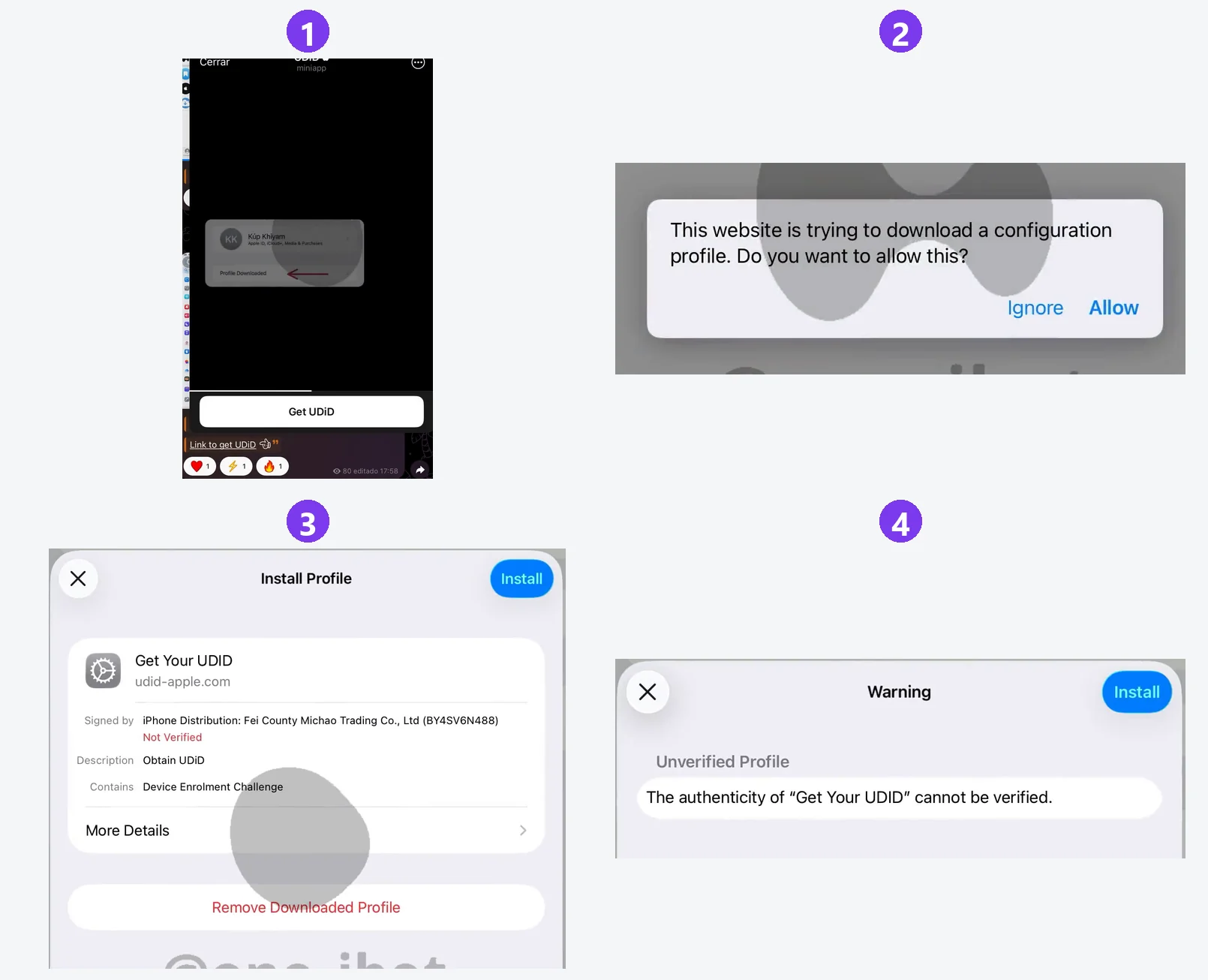
- Open the UDID mini app and tap Get UDiD.
- In Safari, allow the configuration profile to download: tap Allow, then Close.
- Open Settings and select Profile Downloaded. If you do not see it, open General → VPN & Device Management and find the Get Your UDID profile.
- Tap Install in the upper-right corner and enter your device passcode.
- When the unverified profile warning appears, tap Install again and confirm in the bottom dialog.
After the profile is installed, your device will return to Telegram. Your UDID and device model will appear in the message field — just tap Send.

Install the profile within 8 minutes of downloading it. If it expires, open the mini app again and repeat the steps.
If a computer is available: connect your iPhone with a cable and open Finder on a Mac or iTunes on Windows. Click the serial number until the UDID appears, copy it and send it to the bot.
Step 3. Get your certificate
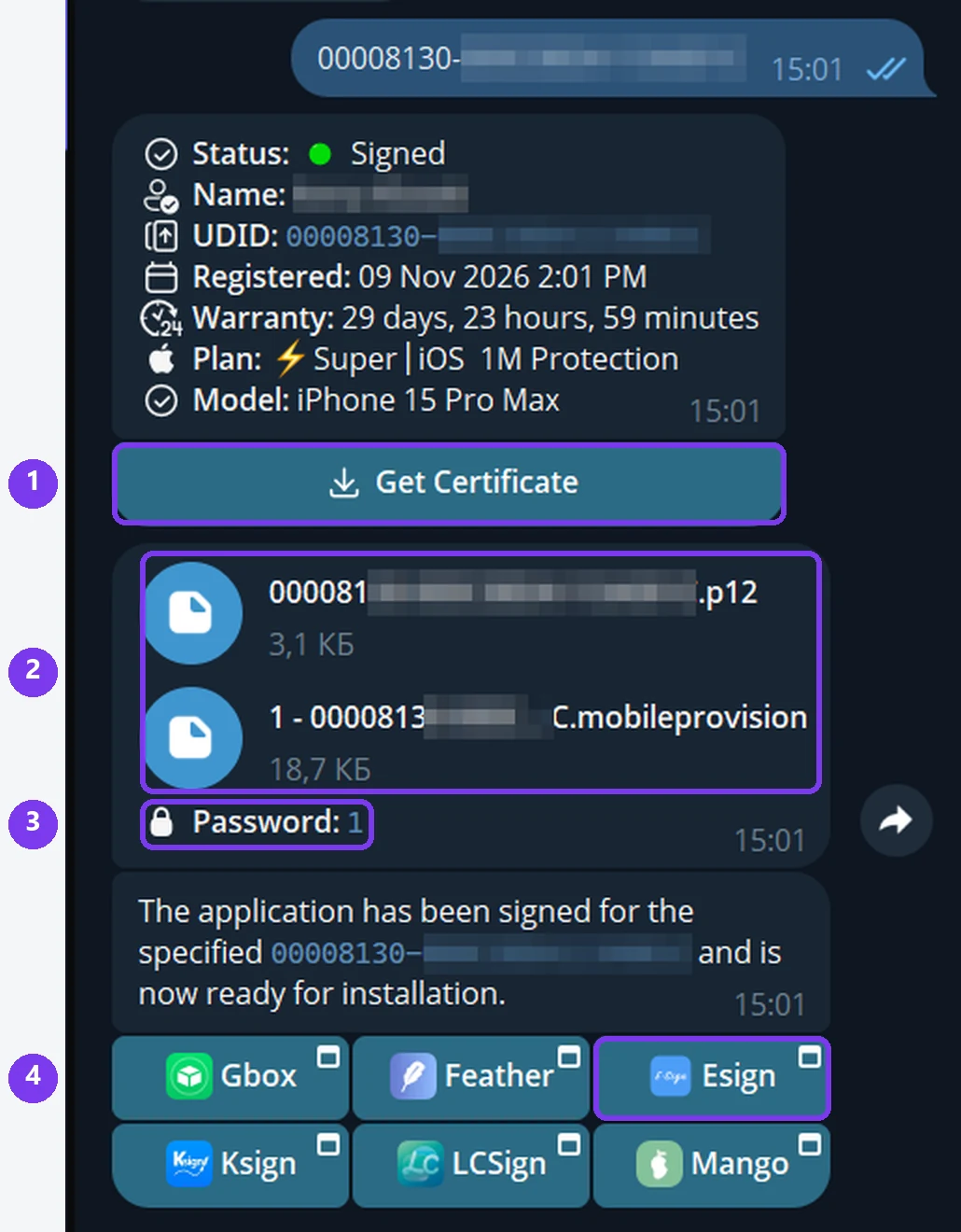
- The bot will show a card with the status, UDID, plan and warranty. Tap Get Certificate and wait 2–3 minutes.
- The bot will send two files:
.p12— the certificate, and.mobileprovision— the provisioning profile. - Save the certificate password shown next to the files: you will need it in step 7.
- The next message will contain buttons for signing apps. For this guide, choose ESign.
Step 4. Save both files to Files
The numbers in the screenshot correspond to the steps below.
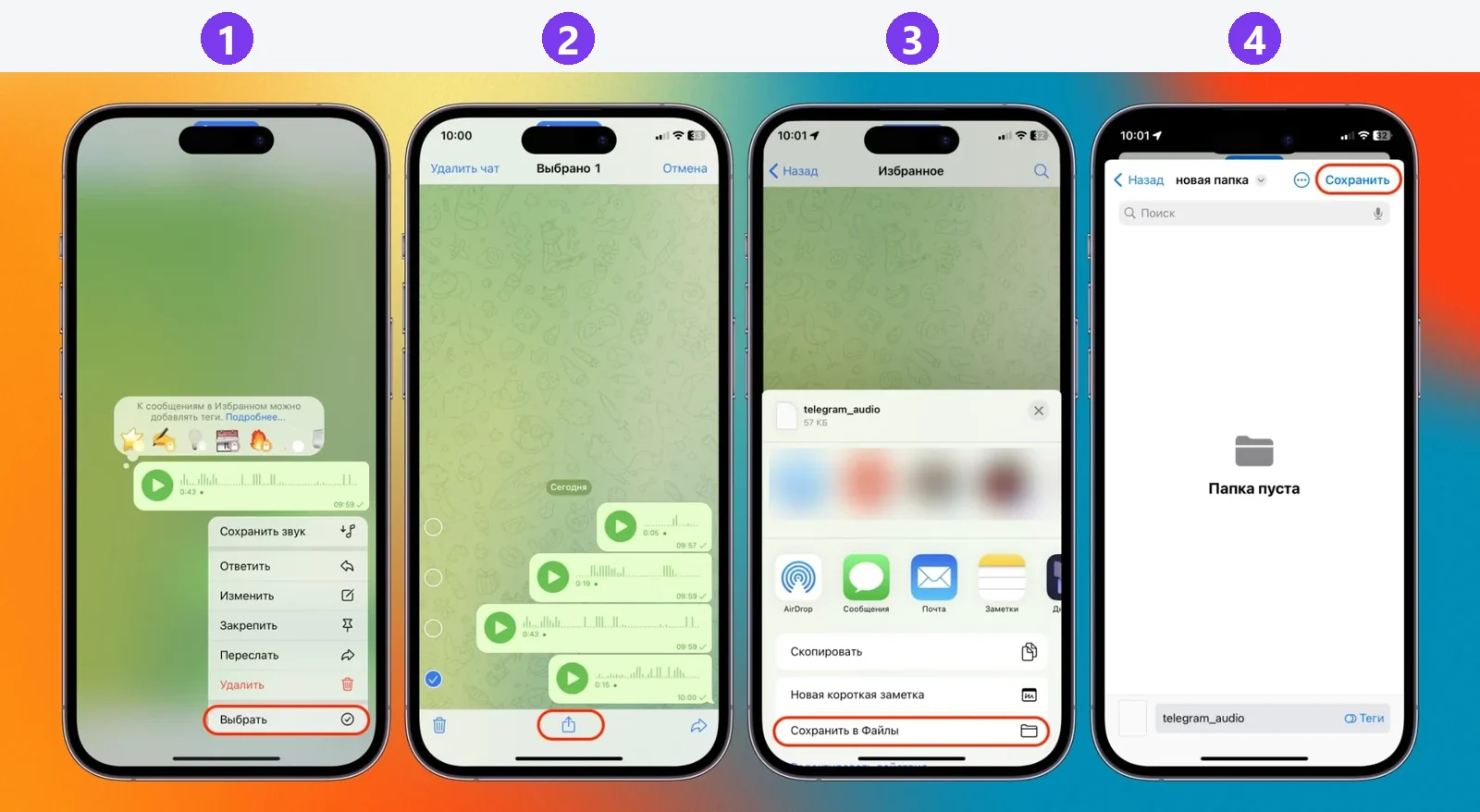
- Touch and hold the message containing the files, then tap Select. Select both files:
.p12and.mobileprovision. - Tap Share at the bottom of the screen — the square with an arrow.
- Select Save to Files.
- Choose a folder, such as On My iPhone, and tap Save.
Remember the selected folder: you will need to import both files from it in step 7.
Step 5. Install ESign
- Tap the ESign button in the bot's message.
- On the page that opens, tap Install and confirm the installation.
- Wait for the ESign icon to appear on your Home Screen. This usually takes about a minute.
If ESign does not install or open, use the Mango or Feather button in the same message. The general process is the same: import both files, enter the certificate password and sign the IPA. Some button names may differ.
Step 6. Enable Developer Mode
This is required once on iOS 16 and later. Apps installed with a certificate will not open unless Developer Mode is enabled.
- Open ESign. In the Developer Mode Required dialog, tap OK.
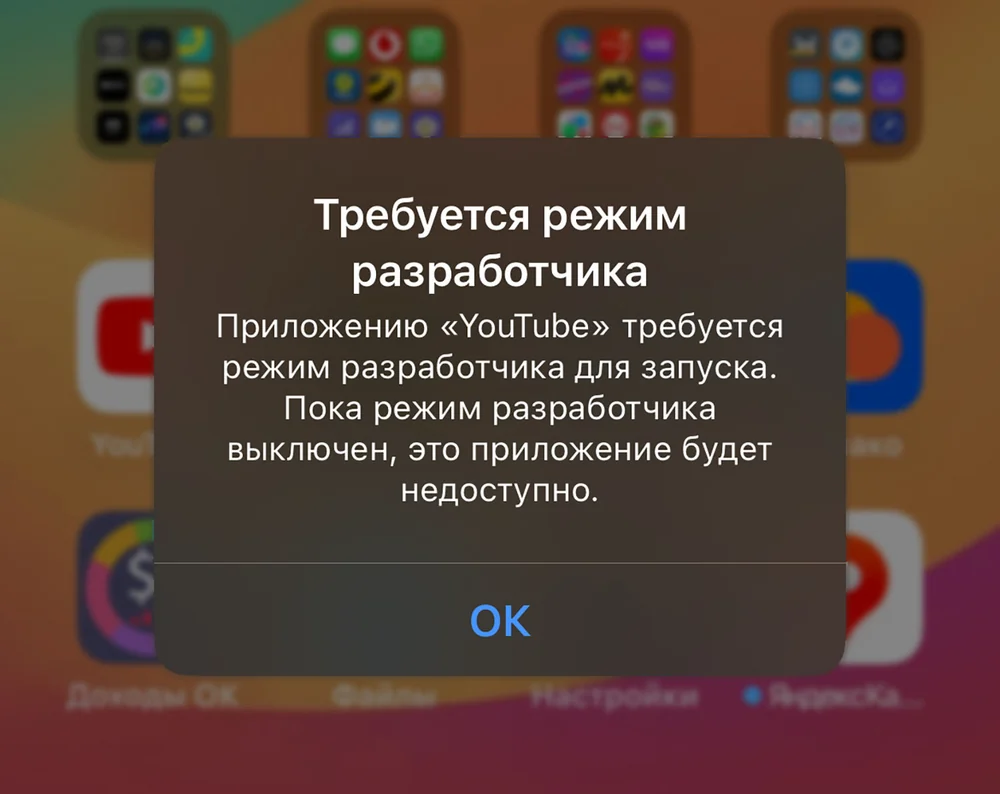
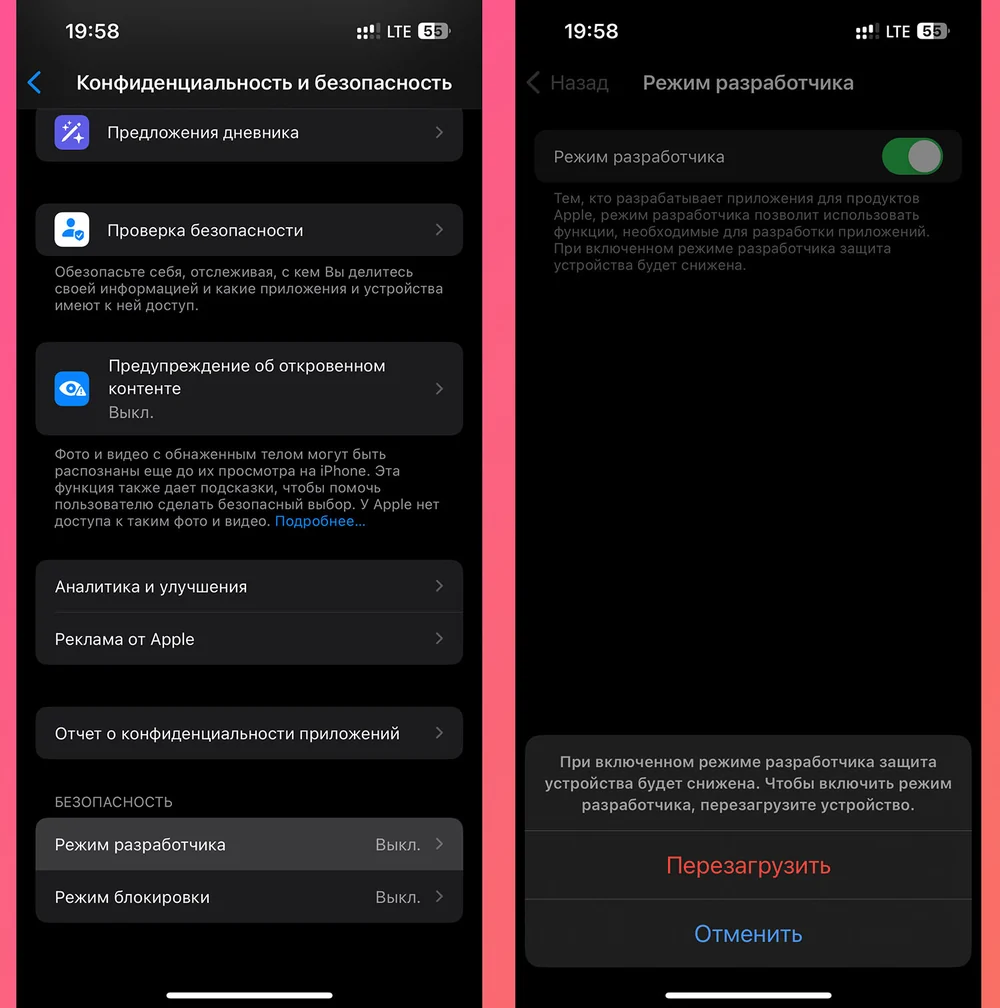
- Open Settings → Privacy & Security, scroll down and select Developer Mode. Turn on the switch and tap Restart.
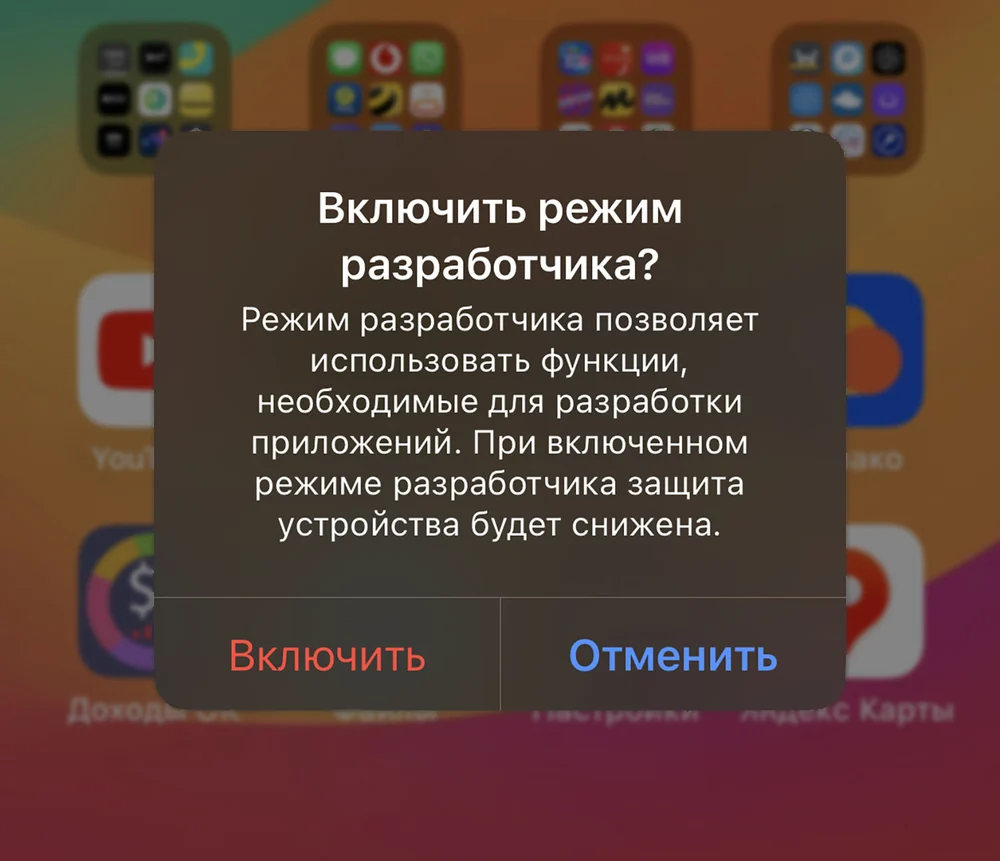
- After the restart, unlock your device. In the Turn On Developer Mode? dialog, tap Turn On and enter your passcode.
Developer Mode appears in Settings only after ESign is installed. If it is missing, return to step 5.
Step 7. Add the certificate to ESign
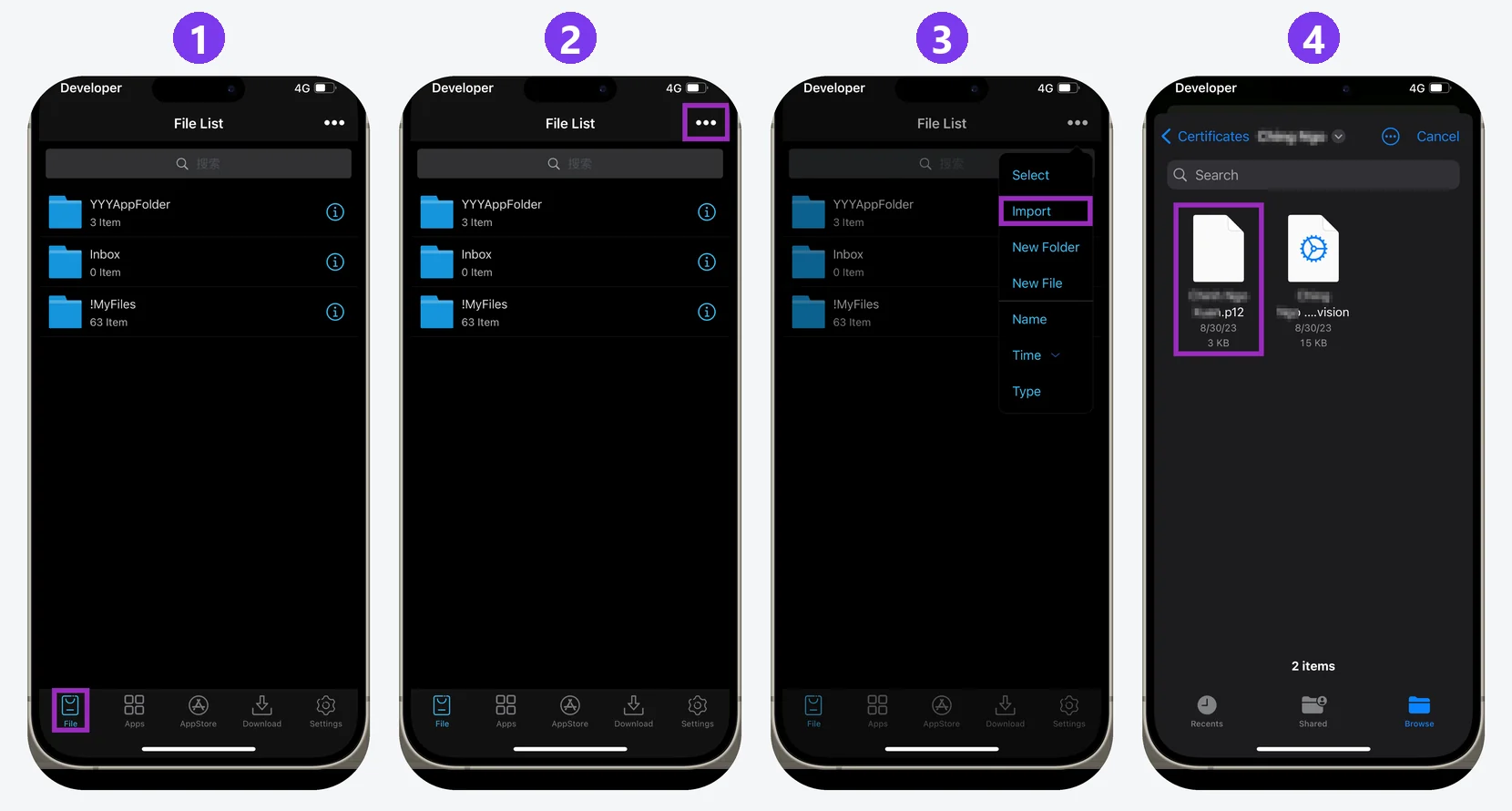
- Open ESign and select the File tab at the bottom.
- Tap ••• in the upper-right corner.
- Select Import.
- In Files, open the folder from step 4 and tap the
.p12file.
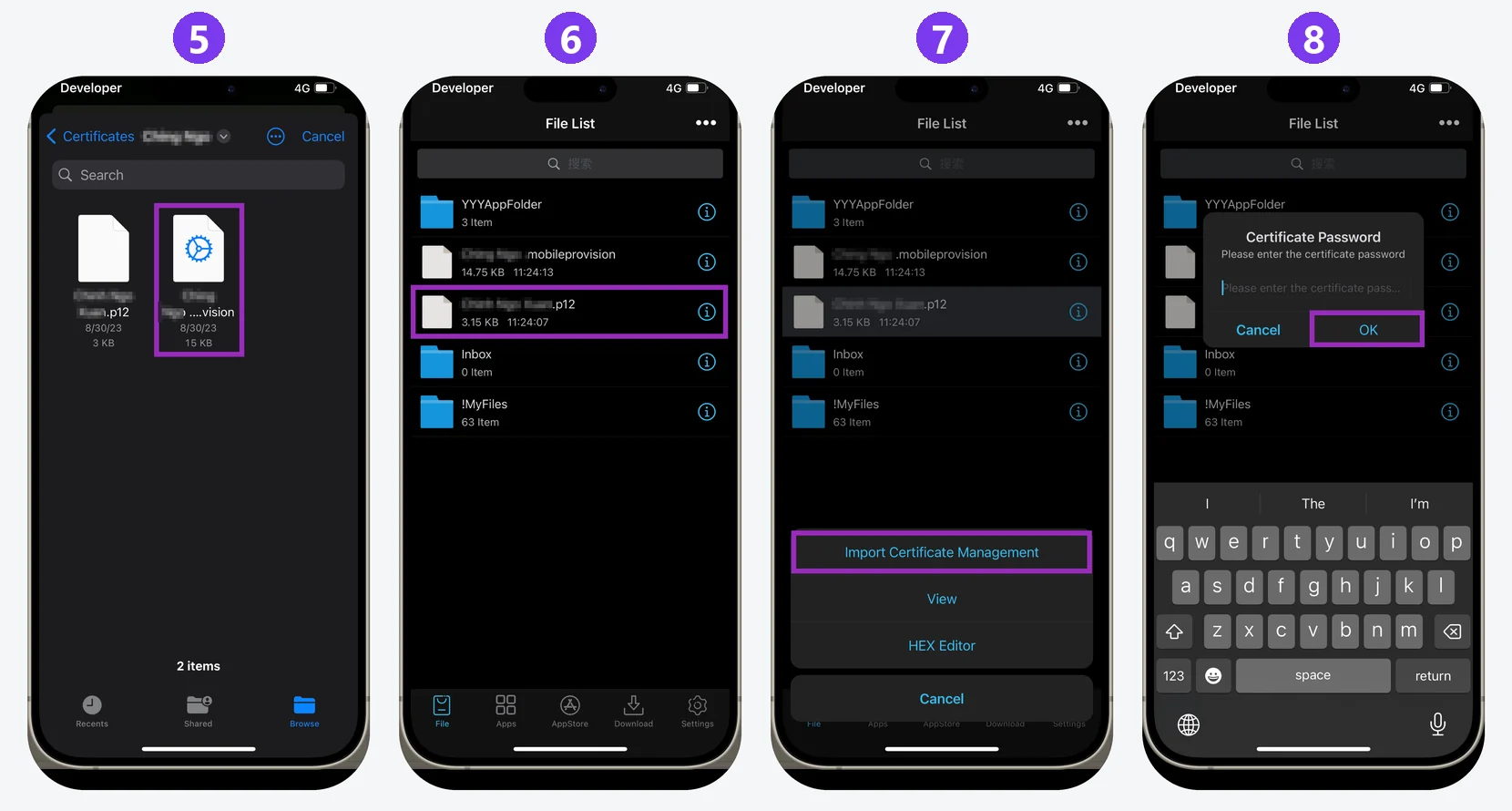
- Tap ••• → Import again and select the
.mobileprovisionfile. - When both files appear in the list, tap the
.p12file. - Select Import Certificate Management. In some versions of ESign, this option is called Import Certificate.
- Enter the password from the bot's message and tap OK.
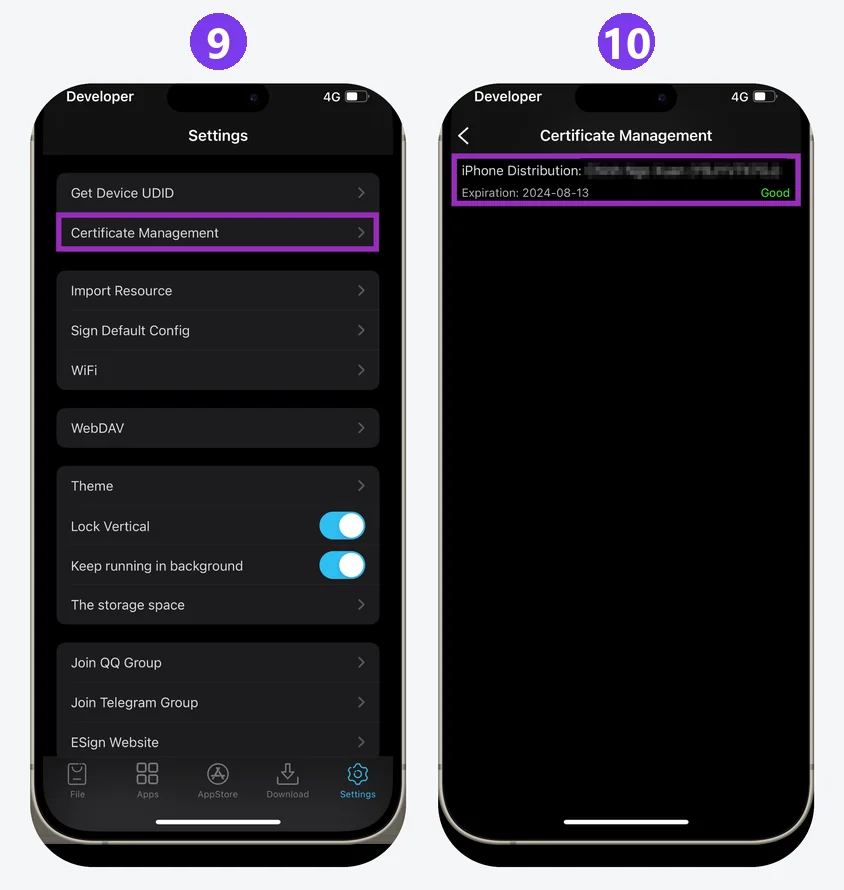
- Open the Settings tab in the lower-right corner and select Certificate Management.
- Check that your certificate appears in the list with a green Good status.
Step 8. Install the app (IPA)
Save the IPA file from your order materials to your device. When saved through Safari, the file is usually located in Files → Downloads.
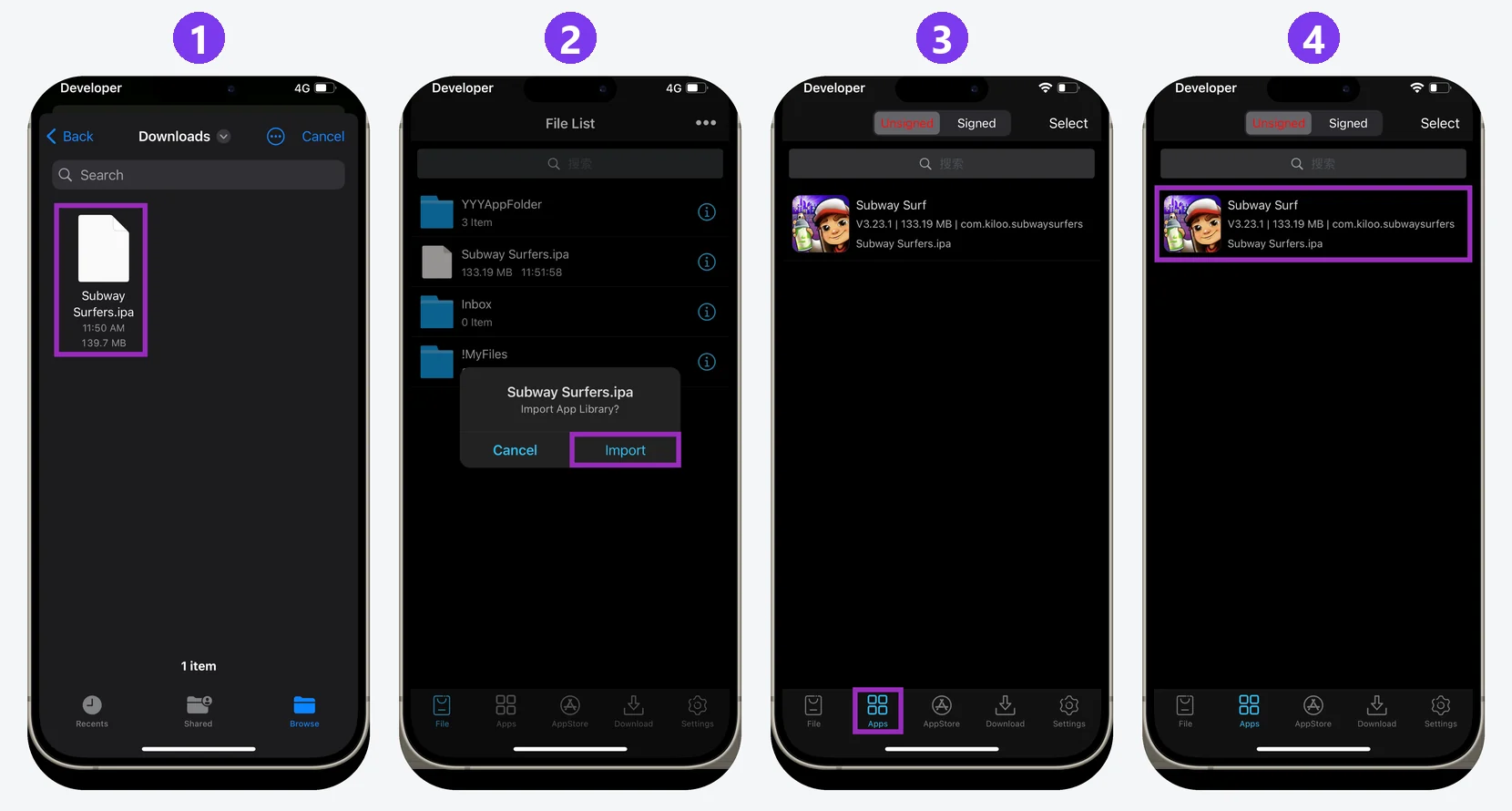
- In ESign, open the File tab, tap ••• → Import and select the IPA file.
- In the Import App Library? dialog, tap Import.
- Open the Apps tab — the second button from the bottom.
- Tap the imported app.
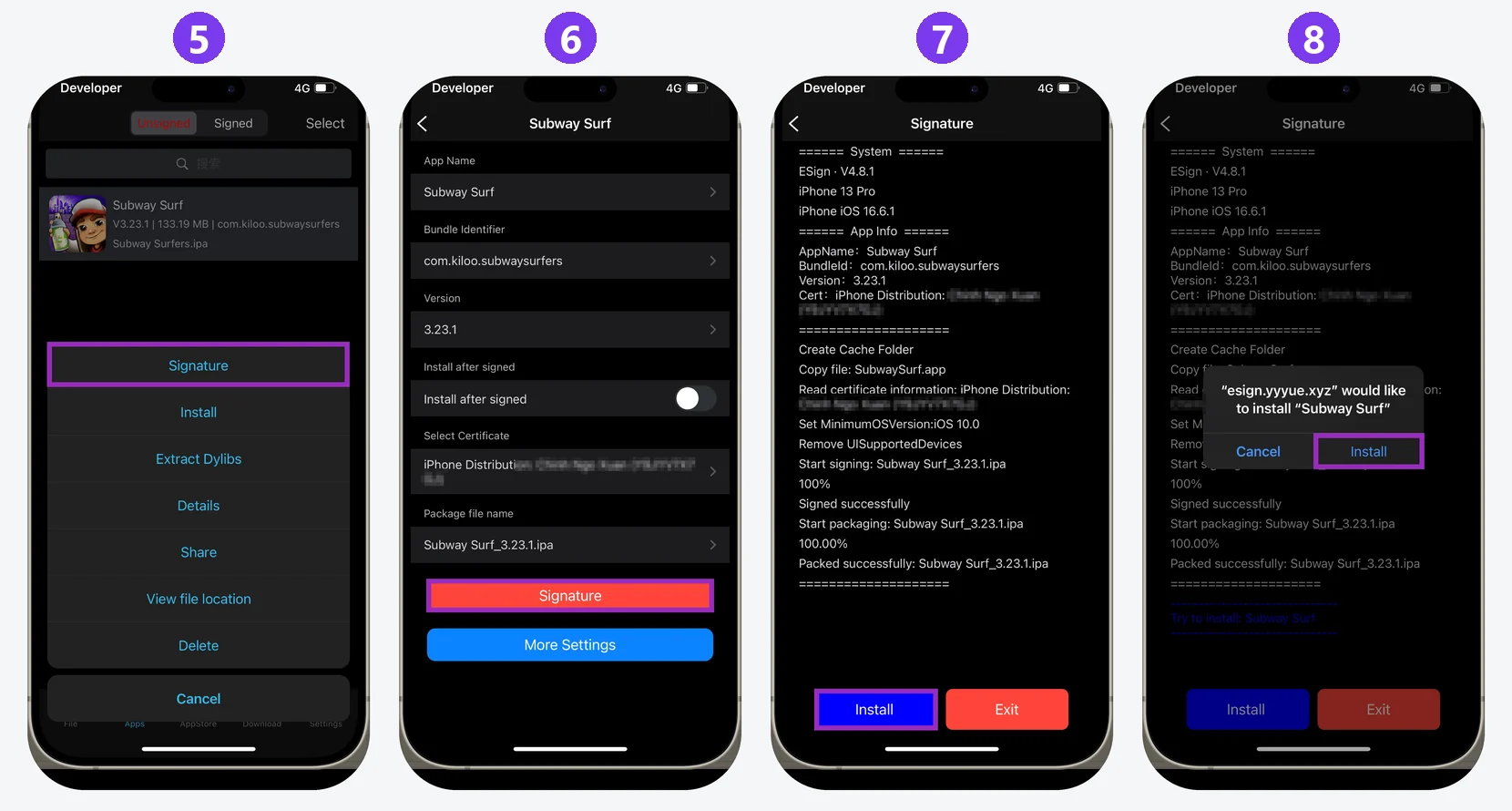
- Select Signature.
- Check that your certificate is selected in Select Certificate, then tap the red Signature button.
- Wait for Packed successfully and tap Install.
- In the system dialog, tap Install again.
After installation, the app icon will appear on your Home Screen. To activate the app, enter your key according to the instructions for the purchased product.
If something goes wrong
- The bot does not accept the key. Copy the complete key from your order without spaces at the beginning or end, then send it again.
- Profile Downloaded is missing in Settings. Open the mini app from step 2 on the same device and allow the profile to download in Safari. If more than 8 minutes have passed, download it again.
- The files have not arrived 5 minutes after Get Certificate. Check that the bot received the correct UDID, wait a few more minutes and review the following messages: both files and the password are sent separately.
- The password is not accepted. Enter it exactly as shown in the bot's message without adding spaces.
- The app cannot be installed. Wait a few minutes and try again. Also check that the UDID on the certificate card belongs to this device.
- The app installed but does not open. Check that Developer Mode from step 6 is enabled and that the certificate has a Good status in Certificate Management.
- ESign does not install or open. Repeat step 5 using Mango or Feather.
- All signed apps stopped opening at once. Apple may have revoked the certificate. After receiving a replacement under your plan, repeat steps 4, 7 and 8 with the new files.
Frequently asked questions
Where can I find my key?
The key is in the order materials you received after payment. Send it to the bot after tapping USE KEY.
Do I need a computer or a jailbreak?
No. You can find your UDID, get the certificate, install ESign and sign apps directly on your iPhone or iPad. A computer is only an alternative way to find the UDID.
Can I use the certificate on another iPhone?
No. The certificate is linked to the UDID of the device you sent to the bot. Another iPhone or iPad requires a separate certificate.
Why do I need to enable Developer Mode?
On iOS 16 and later, it is required to run apps installed with a developer certificate. Without it, neither ESign nor signed apps will open.
What happens if Apple revokes the certificate?
All apps signed with that certificate will stop opening. After receiving a new certificate, import it into ESign and sign the apps again.
Do I have to use ESign?
No. You can also import the certificate and sign IPA files with Mango, Feather, Ksign or Gbox. The general process is the same, but the location and names of buttons may differ.